
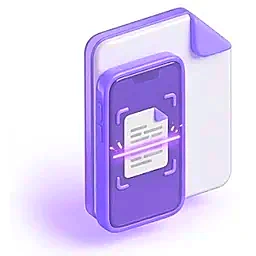
Scan & OCR Runs on this device. Nothing is uploaded.
Scan to PDF
Scan the QR code to open the Anvy PDF app's scanner on your phone: edges found by themselves, filters, crop and cleaning.

How to use Scan to PDF
- 1On a computer, scan the QR code with your phone: it opens the scanner of the Anvy PDF app.
- 2Hold the phone over the page: the edges are found and the picture is taken by itself. Add more pages.
- 3Crop, pick a filter, wipe away marks, and save everything as one PDF on the phone.
Questions
Why not use my computer’s webcam?
A webcam is fixed and blurry for paper, so scans come out skewed and dark. A phone held over the page makes clean, straight scans. You can still use the webcam from the link on the page.
How do I get the scan onto my computer?
The PDF is saved on your phone. Share it to the computer by WhatsApp, email or Drive. Anvy PDF itself never uploads it anywhere.
Is the camera picture sent anywhere?
No. The camera is used only on this page, and the picture stays on your device.
The camera won’t start. What now?
Check that you allowed camera access for this site, and that no other app is using the camera.